Windows 10 / 11 · Needs Google Chrome · Free updates
Everything you need to run your pages
🧑🤝🧑
Many accounts at once
Log in and post with several accounts side by side, each in its own Chrome window.
🗂️
Every page, one place
Fetch all your pages, tick the ones you want, and give each its own caption.
⏰
Schedules & limits
Post at set times with human-like waits and daily limits per page and account.
🔁
Never posts twice
Posted videos move aside automatically, and failed reels can retry.
📈
Views & monetization
Read views, followers and monetization status for every page.
🔒
Licensed & private
Your accounts and logins stay on your PC.
Install in 3 steps
1
Download & unzip
Download Jenkey and unzip the whole folder somewhere you'll keep it. Don't run it from inside the zip.
2
Have Chrome
Jenkey uses Google Chrome to log in and post. Install it if you don't have it.
3
Open & activate
Open the Jenkey app. If Windows warns you, click More info → Run anyway, then enter your licence key.
Step-by-step guide
Every screen, in the order you'll use them. Each red number matches a note beside the picture. Click a picture to zoom in.
01
Getting started
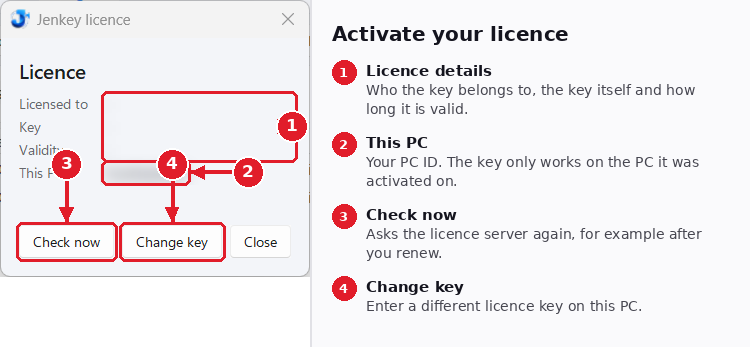
Activate your licence
The first time you open Jenkey it asks for your licence key. Paste the key you bought and press Activate. Jenkey ties the key to this PC, so keep it private.
Show notes as text (4)
1
Licence details
Who the key belongs to, the key itself and how long it is valid.
2
This PC
Your PC ID. The key only works on the PC it was activated on.
3
Check now
Asks the licence server again, for example after you renew.
4
Change key
Enter a different licence key on this PC.
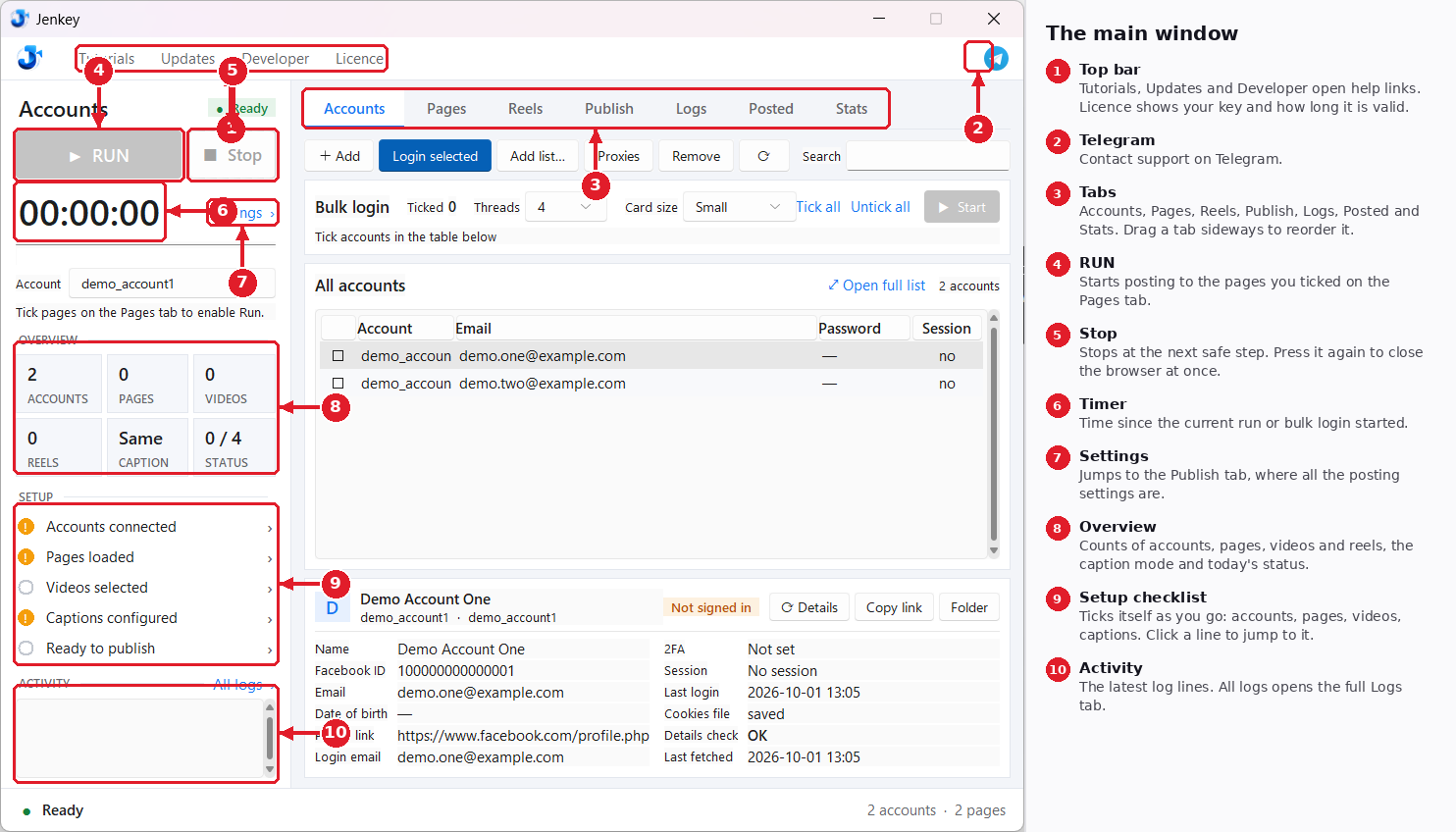
The main window
The left panel is always on screen. It shows the run controls, a quick overview and a setup checklist. The tabs across the top hold everything else.
Show notes as text (10)
1
Top bar
Tutorials, Updates and Developer open help links. Licence shows your key and how long it is valid.
2
Telegram
Contact support on Telegram.
3
Tabs
Accounts, Pages, Reels, Publish, Logs, Posted and Stats. Drag a tab sideways to reorder it.
4
RUN
Starts posting to the pages you ticked on the Pages tab.
5
Stop
Stops at the next safe step. Press it again to close the browser at once.
6
Timer
Time since the current run or bulk login started.
7
Settings
Jumps to the Publish tab, where all the posting settings are.
8
Overview
Counts of accounts, pages, videos and reels, the caption mode and today's status.
9
Setup checklist
Ticks itself as you go: accounts, pages, videos, captions. Click a line to jump to it.
10
Activity
The latest log lines. All logs opens the full Logs tab.
02
Accounts
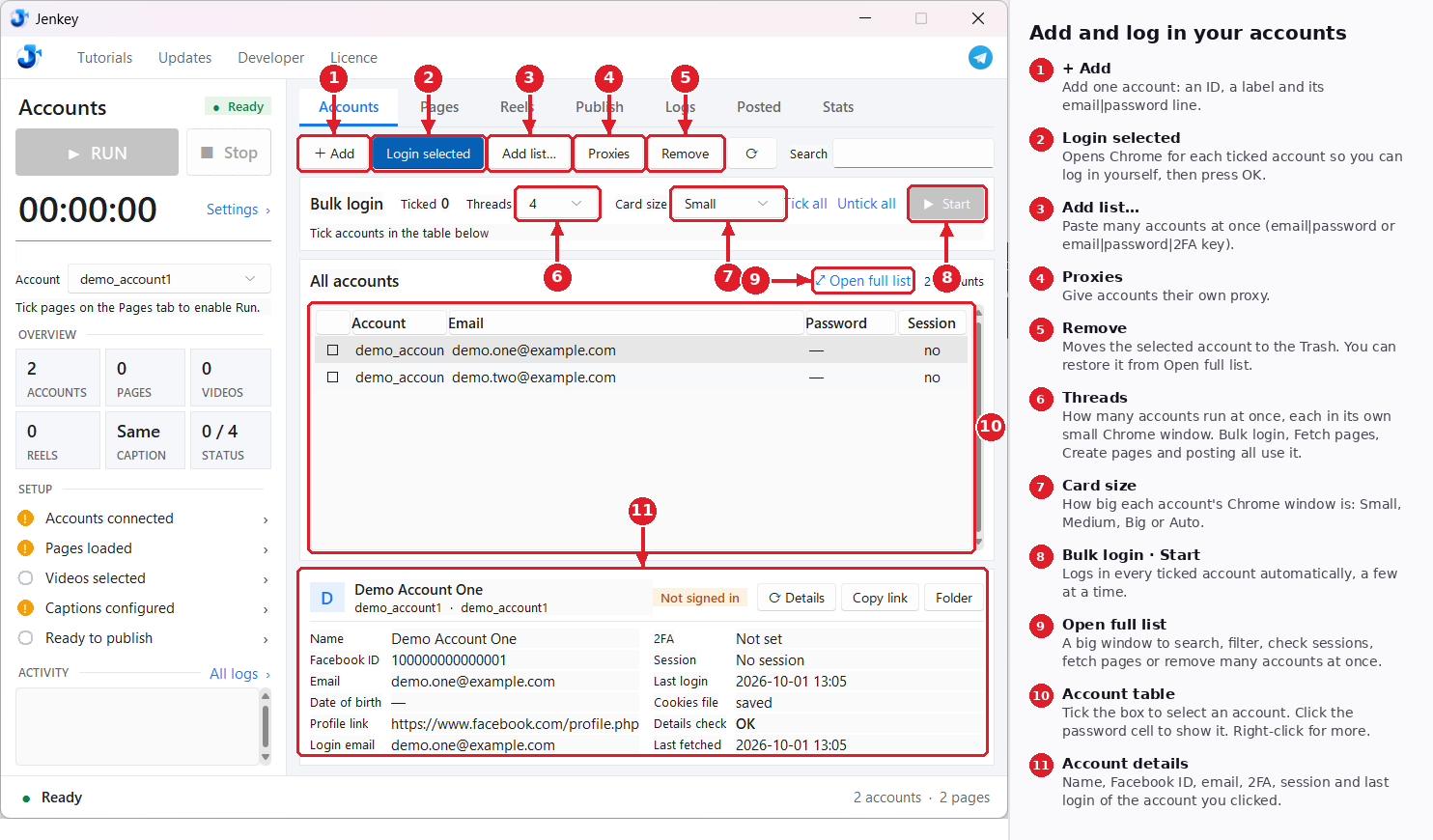
Add and log in your accounts
Every Facebook account you post with lives here. Add them one by one or paste a whole list, then log them in. Jenkey keeps each login in its own Chrome profile.
Show notes as text (11)
1
+ Add
Add one account: an ID, a label and its email|password line.
2
Login selected
Opens Chrome for each ticked account so you can log in yourself, then press OK.
3
Add list…
Paste many accounts at once (email|password or email|password|2FA key).
4
Proxies
Give accounts their own proxy.
5
Remove
Moves the selected account to the Trash. You can restore it from Open full list.
6
Threads
How many accounts run at once, each in its own small Chrome window. Bulk login, Fetch pages, Create pages and posting all use it.
7
Card size
How big each account's Chrome window is: Small, Medium, Big or Auto.
8
Bulk login · Start
Logs in every ticked account automatically, a few at a time.
9
Open full list
A big window to search, filter, check sessions, fetch pages or remove many accounts at once.
10
Account table
Tick the box to select an account. Click the password cell to show it. Right-click for more.
11
Account details
Name, Facebook ID, email, 2FA, session and last login of the account you clicked.
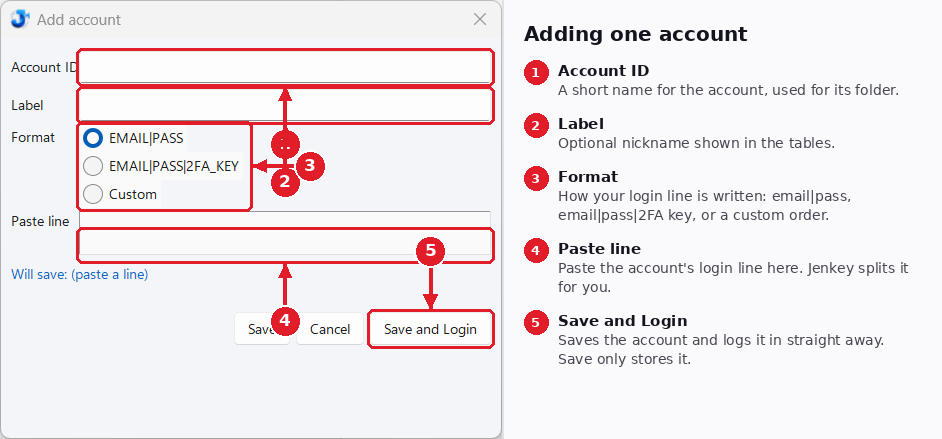
Adding one account
Press + Add on the Accounts tab to open this window.
Show notes as text (5)
1
Account ID
A short name for the account, used for its folder.
2
Label
Optional nickname shown in the tables.
3
Format
How your login line is written: email|pass, email|pass|2FA key, or a custom order.
4
Paste line
Paste the account's login line here. Jenkey splits it for you.
5
Save and Login
Saves the account and logs it in straight away. Save only stores it.
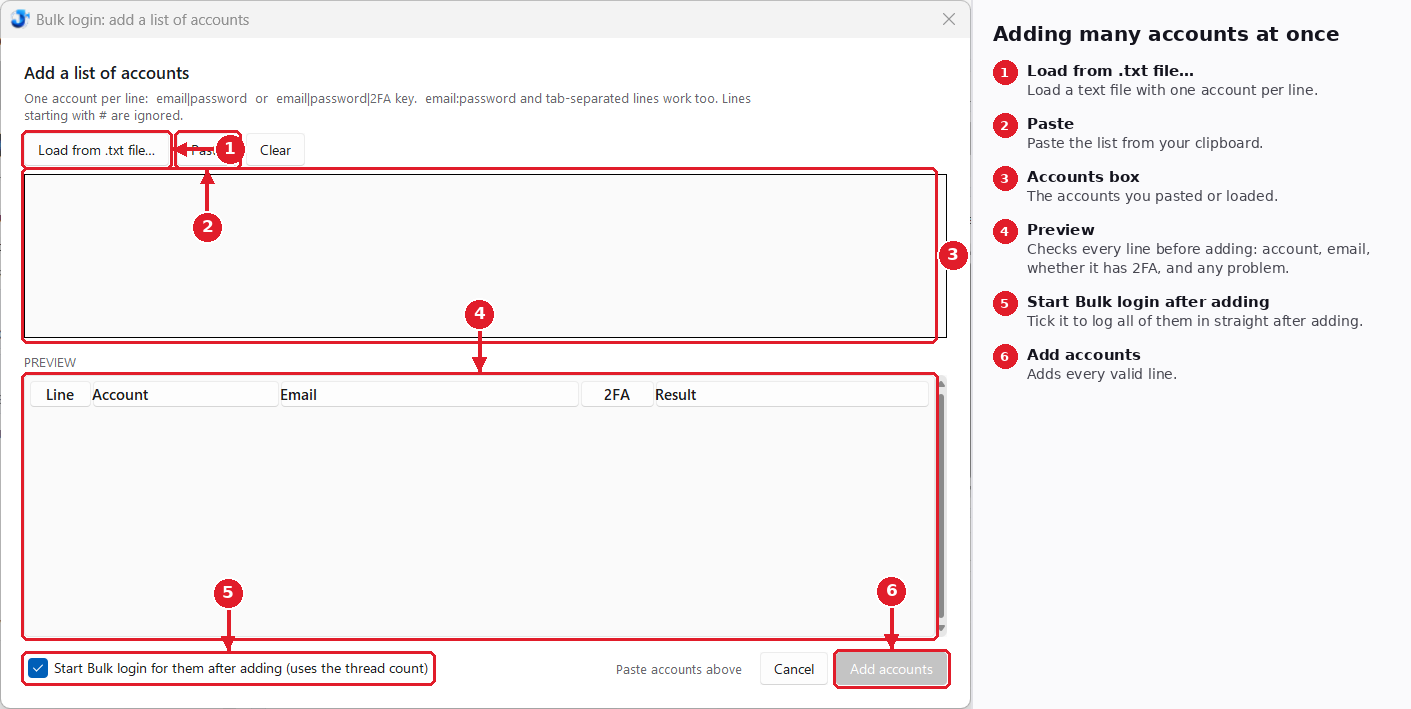
Adding many accounts at once
Press Add list… on the Accounts tab. One account per line.
Show notes as text (6)
1
Load from .txt file…
Load a text file with one account per line.
2
Paste
Paste the list from your clipboard.
3
Accounts box
The accounts you pasted or loaded.
4
Preview
Checks every line before adding: account, email, whether it has 2FA, and any problem.
5
Start Bulk login after adding
Tick it to log all of them in straight after adding.
6
Add accounts
Adds every valid line.
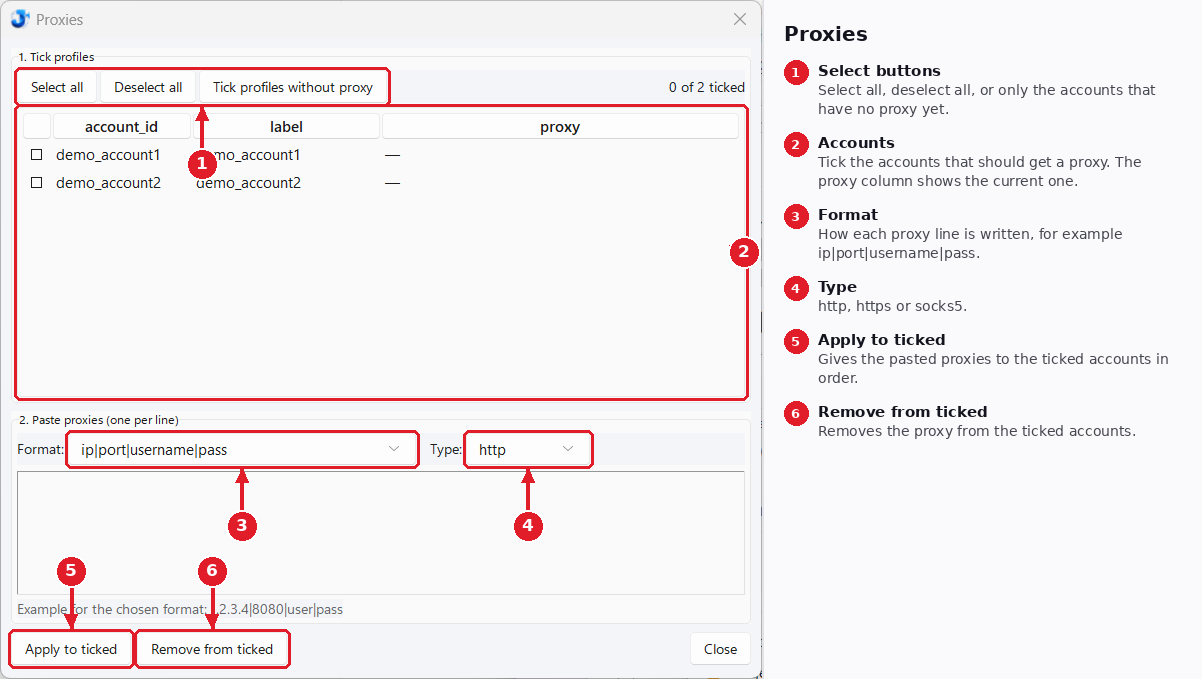
Proxies
Press Proxies on the Accounts tab. Tick the accounts, paste proxies, apply.
Show notes as text (6)
1
Select buttons
Select all, deselect all, or only the accounts that have no proxy yet.
2
Accounts
Tick the accounts that should get a proxy. The proxy column shows the current one.
3
Format
How each proxy line is written, for example ip|port|username|pass.
4
Type
http, https or socks5.
5
Apply to ticked
Gives the pasted proxies to the ticked accounts in order.
6
Remove from ticked
Removes the proxy from the ticked accounts.
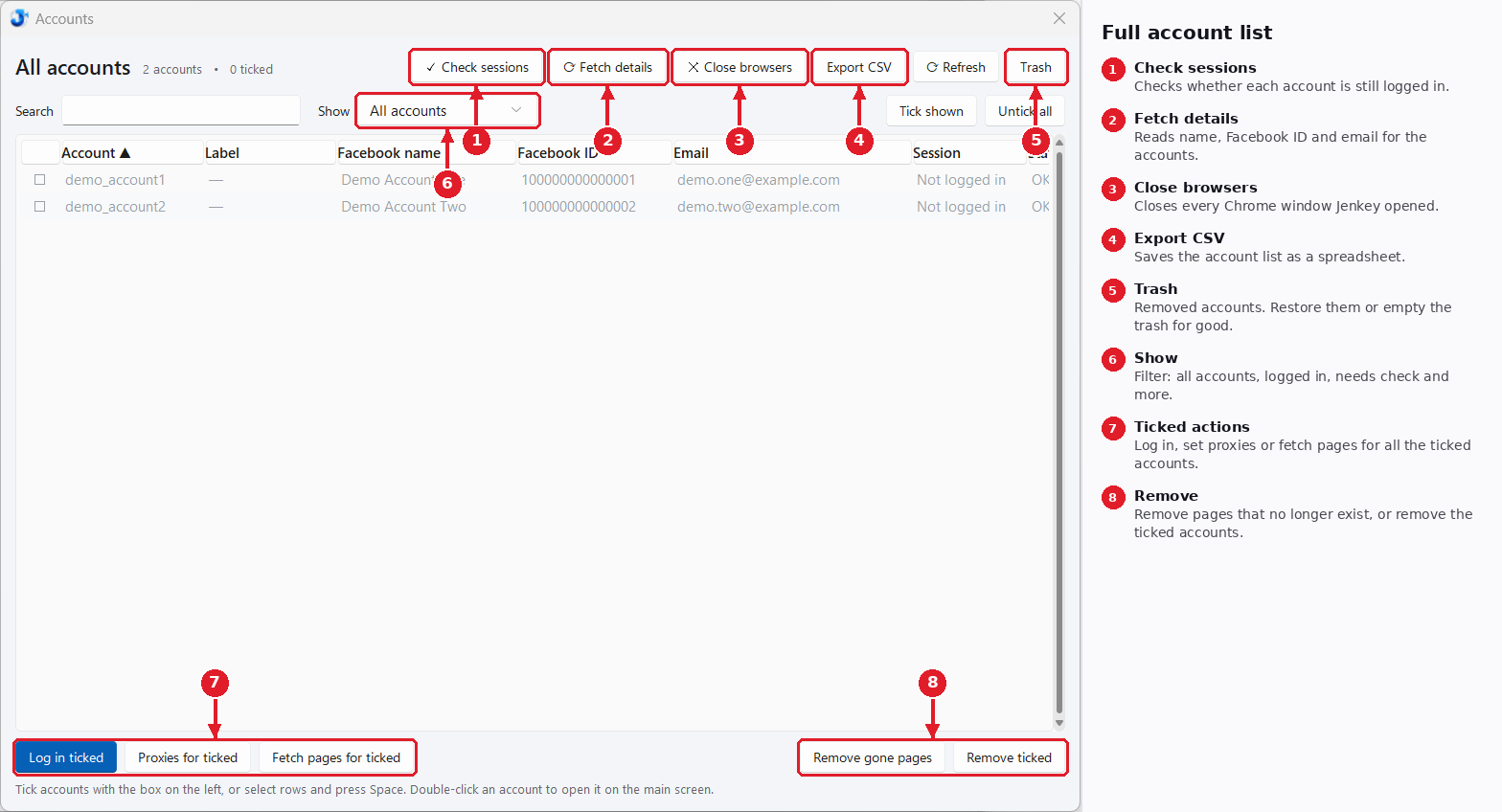
Full account list
Open full list on the Accounts tab opens every account in a big window.
Show notes as text (8)
1
Check sessions
Checks whether each account is still logged in.
2
Fetch details
Reads name, Facebook ID and email for the accounts.
3
Close browsers
Closes every Chrome window Jenkey opened.
4
Export CSV
Saves the account list as a spreadsheet.
5
Trash
Removed accounts. Restore them or empty the trash for good.
6
Show
Filter: all accounts, logged in, needs check and more.
7
Ticked actions
Log in, set proxies or fetch pages for all the ticked accounts.
8
Remove
Remove pages that no longer exist, or remove the ticked accounts.
03
Pages & captions
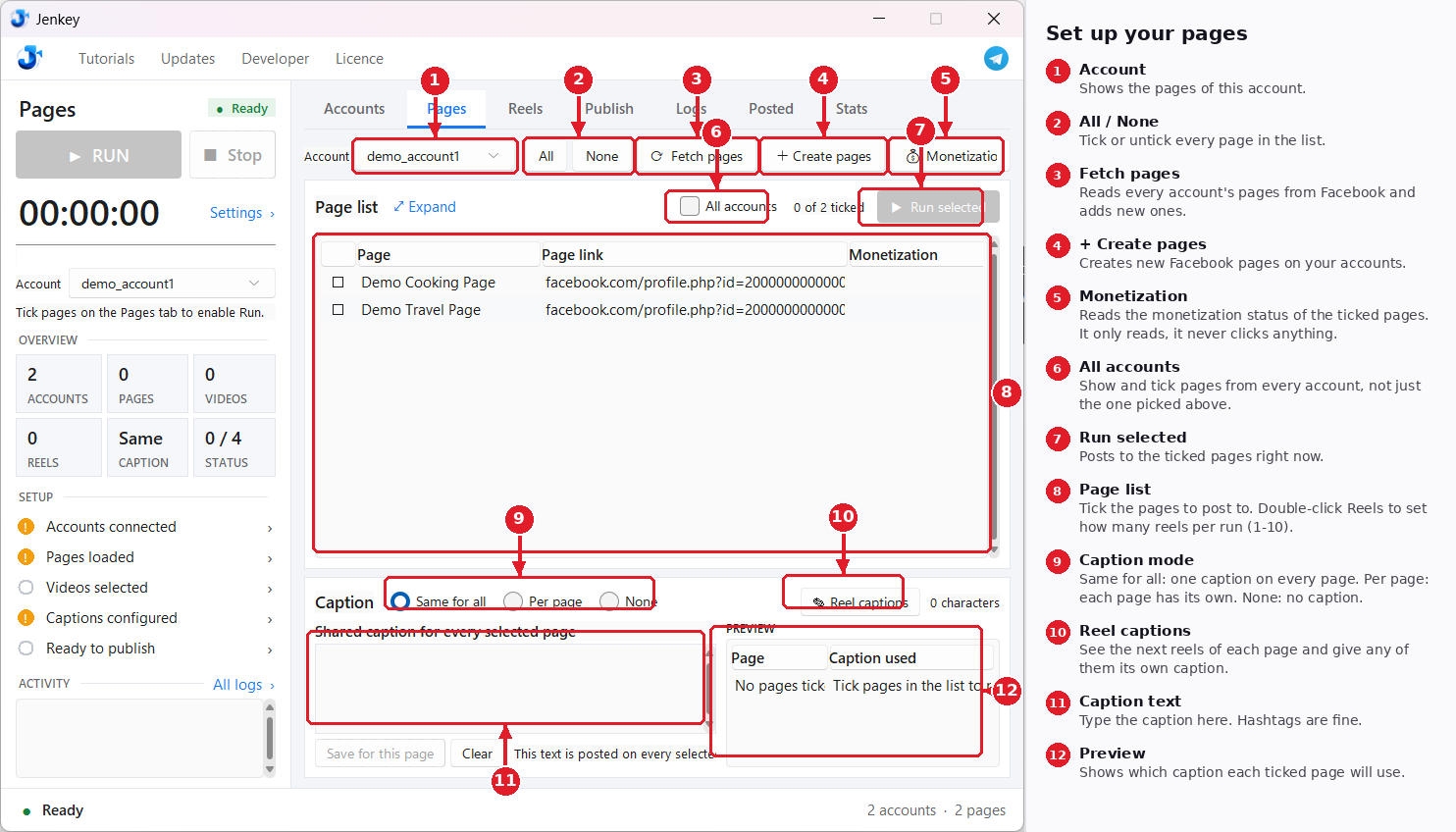
Set up your pages
Pick an account, fetch its Facebook pages, tick the ones you want to post to, and set the caption.
Show notes as text (12)
1
Account
Shows the pages of this account.
2
All / None
Tick or untick every page in the list.
3
Fetch pages
Reads every account's pages from Facebook and adds new ones.
4
+ Create pages
Creates new Facebook pages on your accounts.
5
Monetization
Reads the monetization status of the ticked pages. It only reads, it never clicks anything.
6
All accounts
Show and tick pages from every account, not just the one picked above.
7
Run selected
Posts to the ticked pages right now.
8
Page list
Tick the pages to post to. Double-click Reels to set how many reels per run (1-10).
9
Caption mode
Same for all: one caption on every page. Per page: each page has its own. None: no caption.
10
Reel captions
See the next reels of each page and give any of them its own caption.
11
Caption text
Type the caption here. Hashtags are fine.
12
Preview
Shows which caption each ticked page will use.
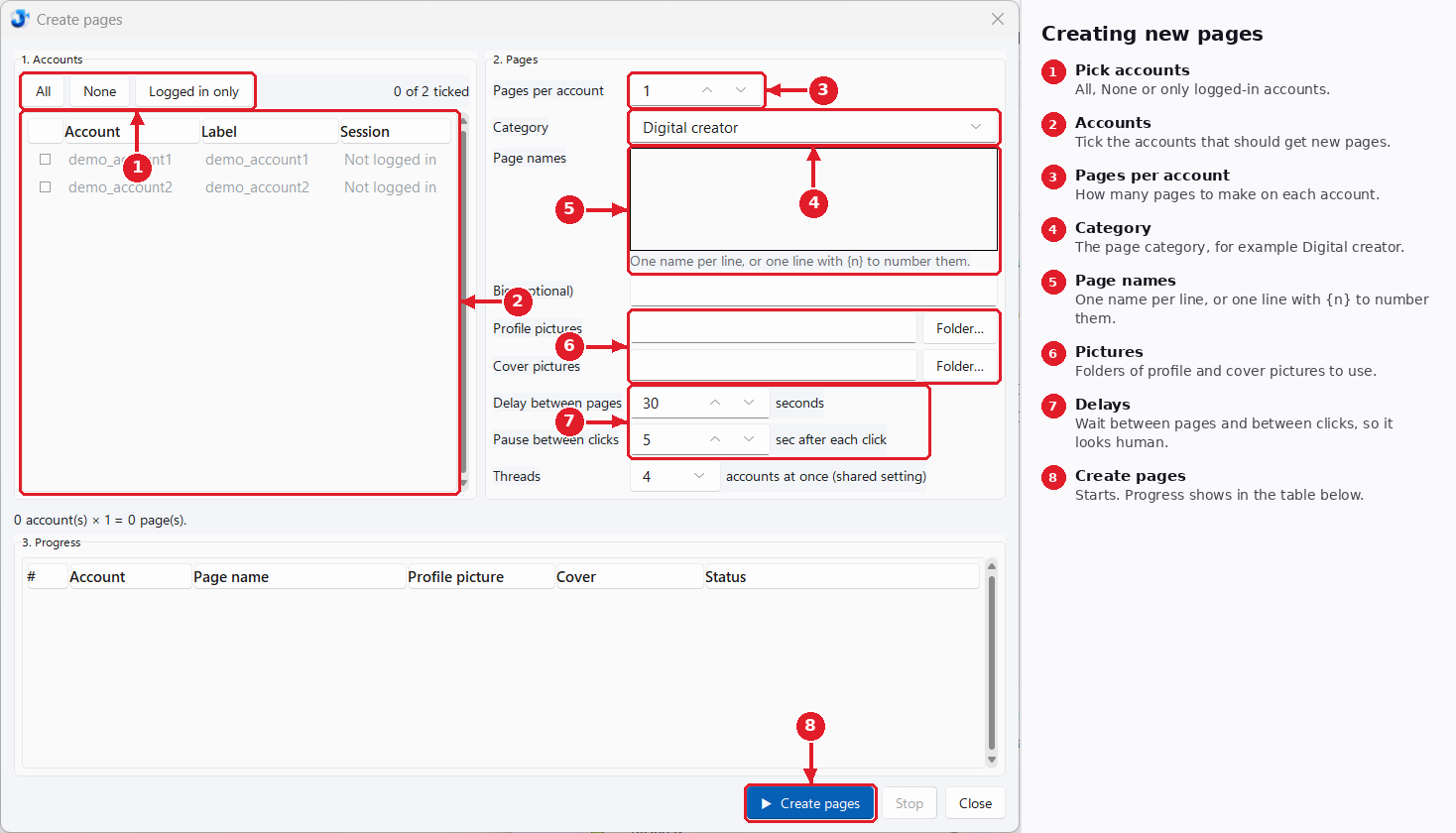
Creating new pages
Press + Create pages on the Pages tab.
Show notes as text (8)
1
Pick accounts
All, None or only logged-in accounts.
2
Accounts
Tick the accounts that should get new pages.
3
Pages per account
How many pages to make on each account.
4
Category
The page category, for example Digital creator.
5
Page names
One name per line, or one line with {n} to number them.
6
Pictures
Folders of profile and cover pictures to use.
7
Delays
Wait between pages and between clicks, so it looks human.
8
Create pages
Starts. Progress shows in the table below.
04
Videos
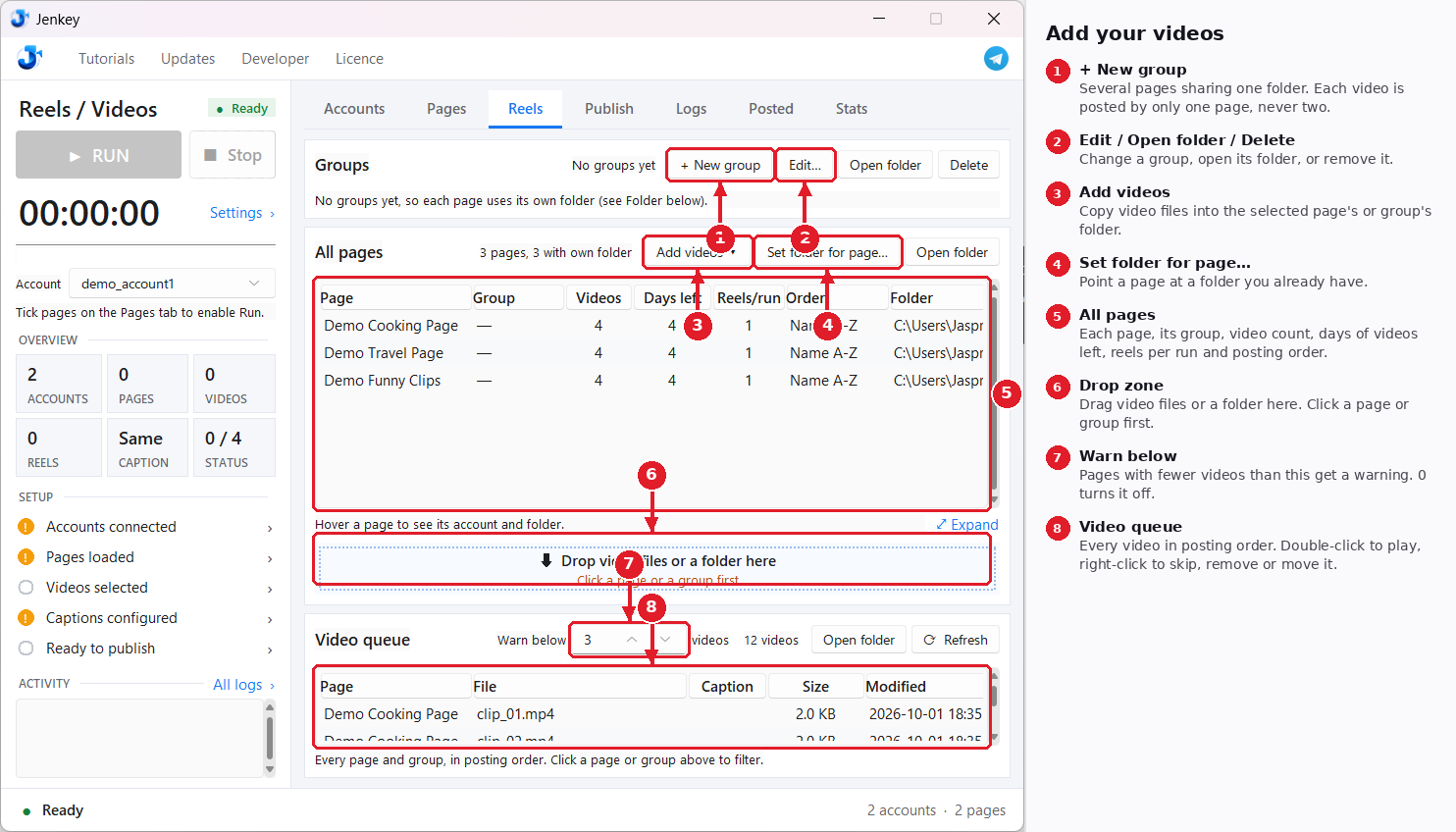
Add your videos
Every page posts from its own folder, or from a shared group folder. Add videos and check the queue.
Show notes as text (8)
1
+ New group
Several pages sharing one folder. Each video is posted by only one page, never two.
2
Edit / Open folder / Delete
Change a group, open its folder, or remove it.
3
Add videos
Copy video files into the selected page's or group's folder.
4
Set folder for page…
Point a page at a folder you already have.
5
All pages
Each page, its group, video count, days of videos left, reels per run and posting order.
6
Drop zone
Drag video files or a folder here. Click a page or group first.
7
Warn below
Pages with fewer videos than this get a warning. 0 turns it off.
8
Video queue
Every video in posting order. Double-click to play, right-click to skip, remove or move it.
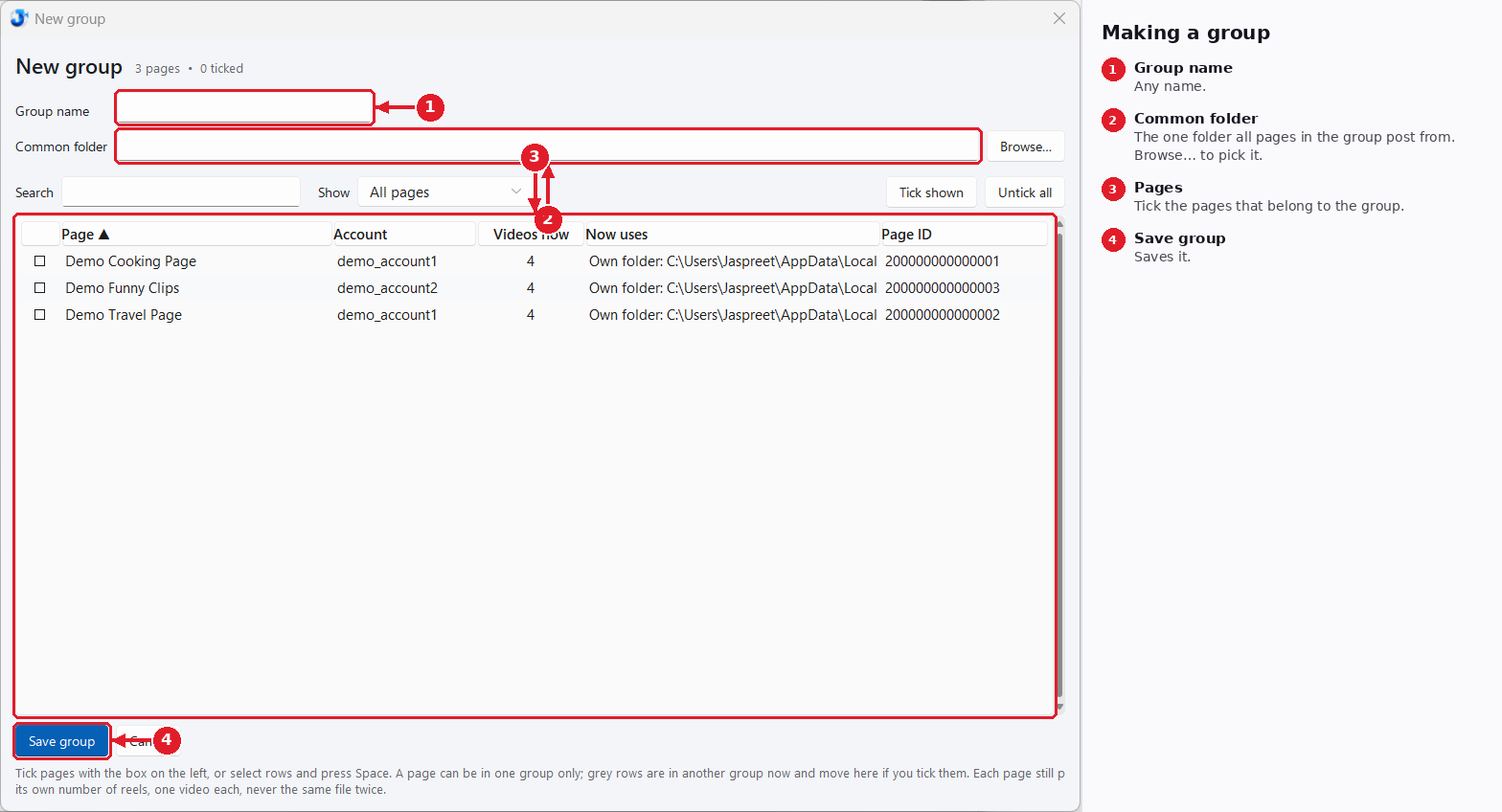
Making a group
Press + New group on the Reels tab.
Show notes as text (4)
1
Group name
Any name.
2
Common folder
The one folder all pages in the group post from. Browse… to pick it.
3
Pages
Tick the pages that belong to the group.
4
Save group
Saves it.
05
Publishing
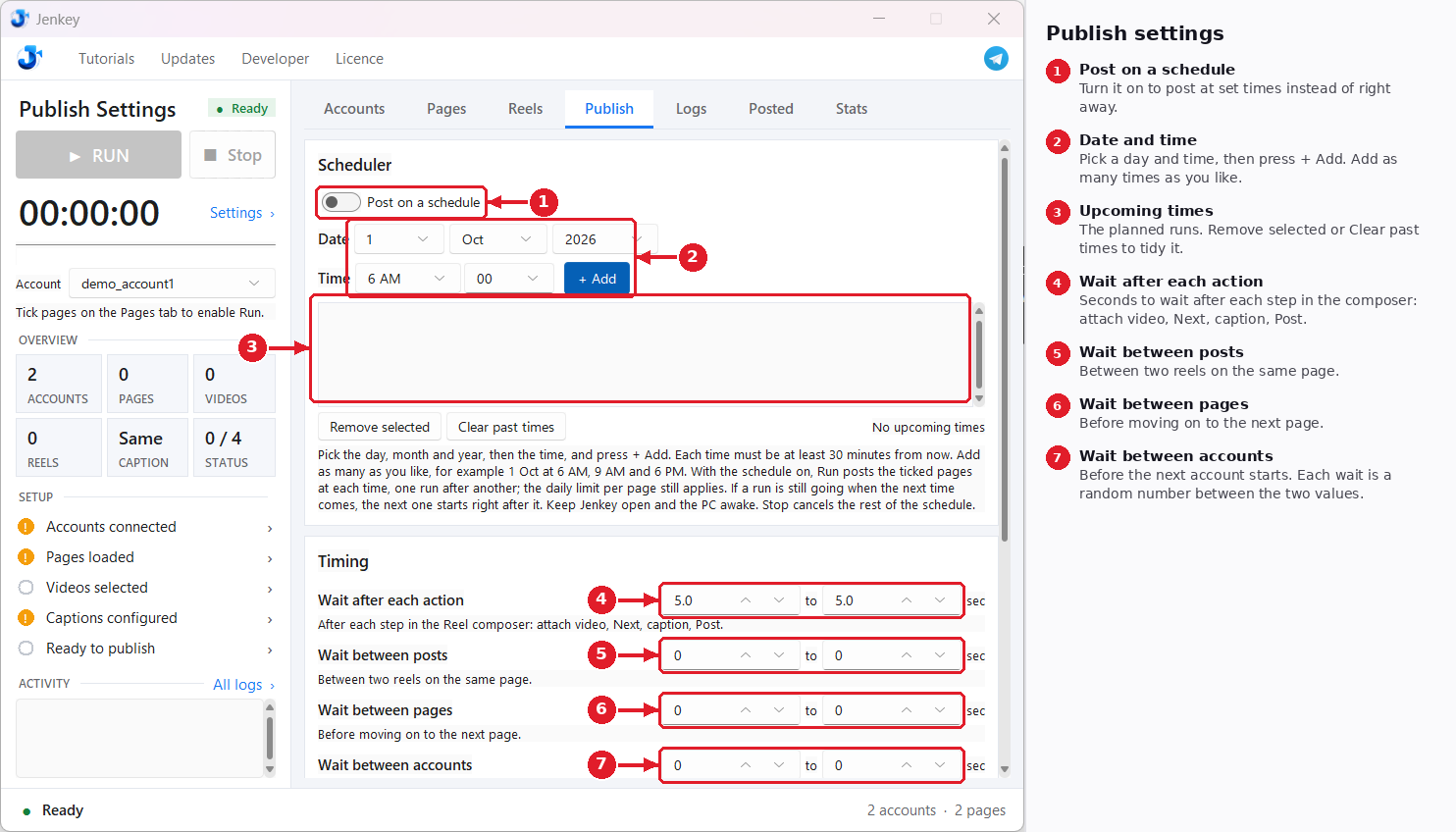
Publish settings: schedule and timing
All posting settings live on the Publish tab. They are saved automatically.
Show notes as text (7)
1
Post on a schedule
Turn it on to post at set times instead of right away.
2
Date and time
Pick a day and time, then press + Add. Add as many times as you like.
3
Upcoming times
The planned runs. Remove selected or Clear past times to tidy it.
4
Wait after each action
Seconds to wait after each step in the composer: attach video, Next, caption, Post.
5
Wait between posts
Between two reels on the same page.
6
Wait between pages
Before moving on to the next page.
7
Wait between accounts
Before the next account starts. Each wait is a random number between the two values.
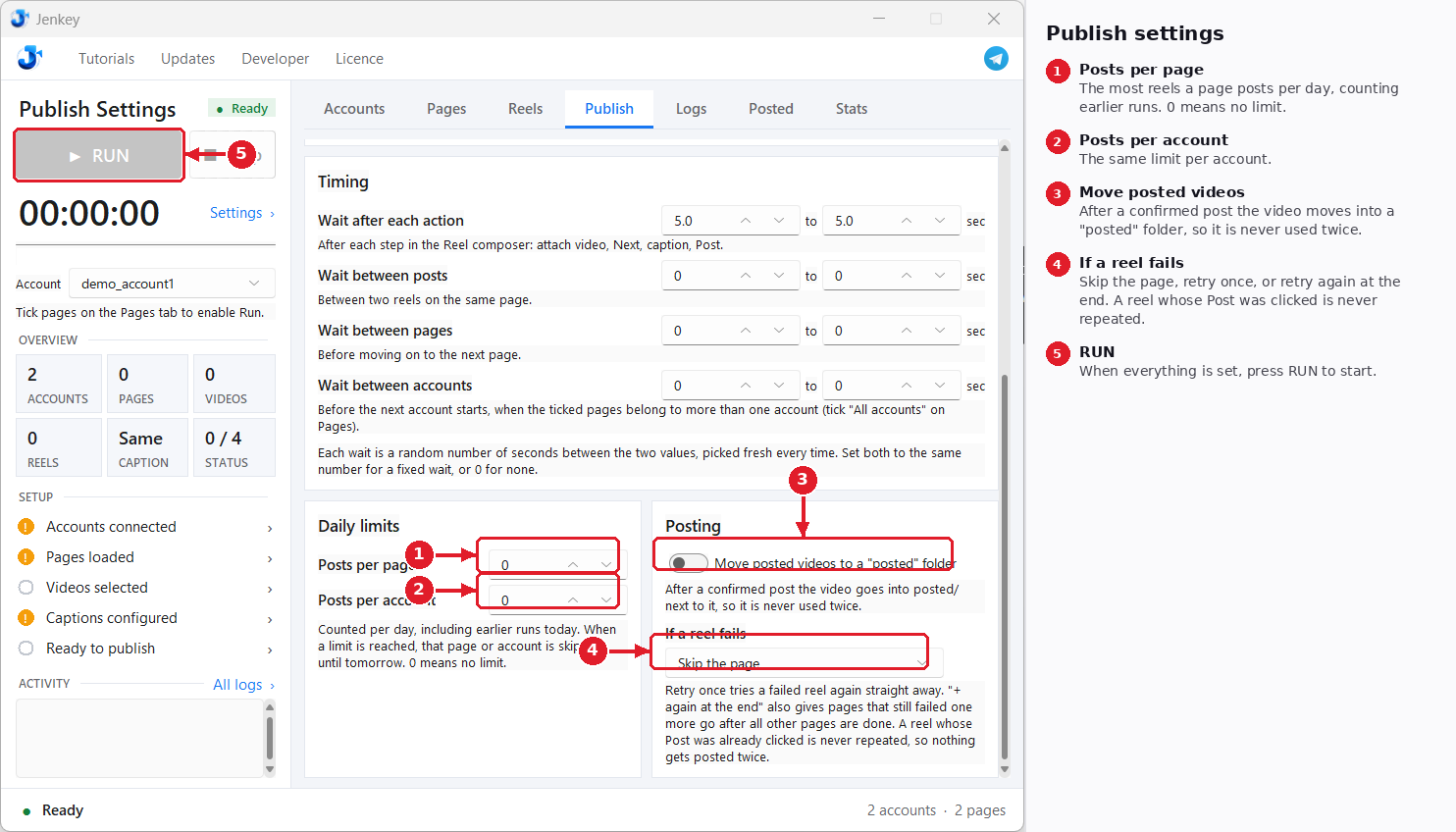
Publish settings: daily limits and posting
Scroll down on the Publish tab.
Show notes as text (5)
1
Posts per page
The most reels a page posts per day, counting earlier runs. 0 means no limit.
2
Posts per account
The same limit per account.
3
Move posted videos
After a confirmed post the video moves into a "posted" folder, so it is never used twice.
4
If a reel fails
Skip the page, retry once, or retry again at the end. A reel whose Post was clicked is never repeated.
5
RUN
When everything is set, press RUN to start.
06
Logs & results
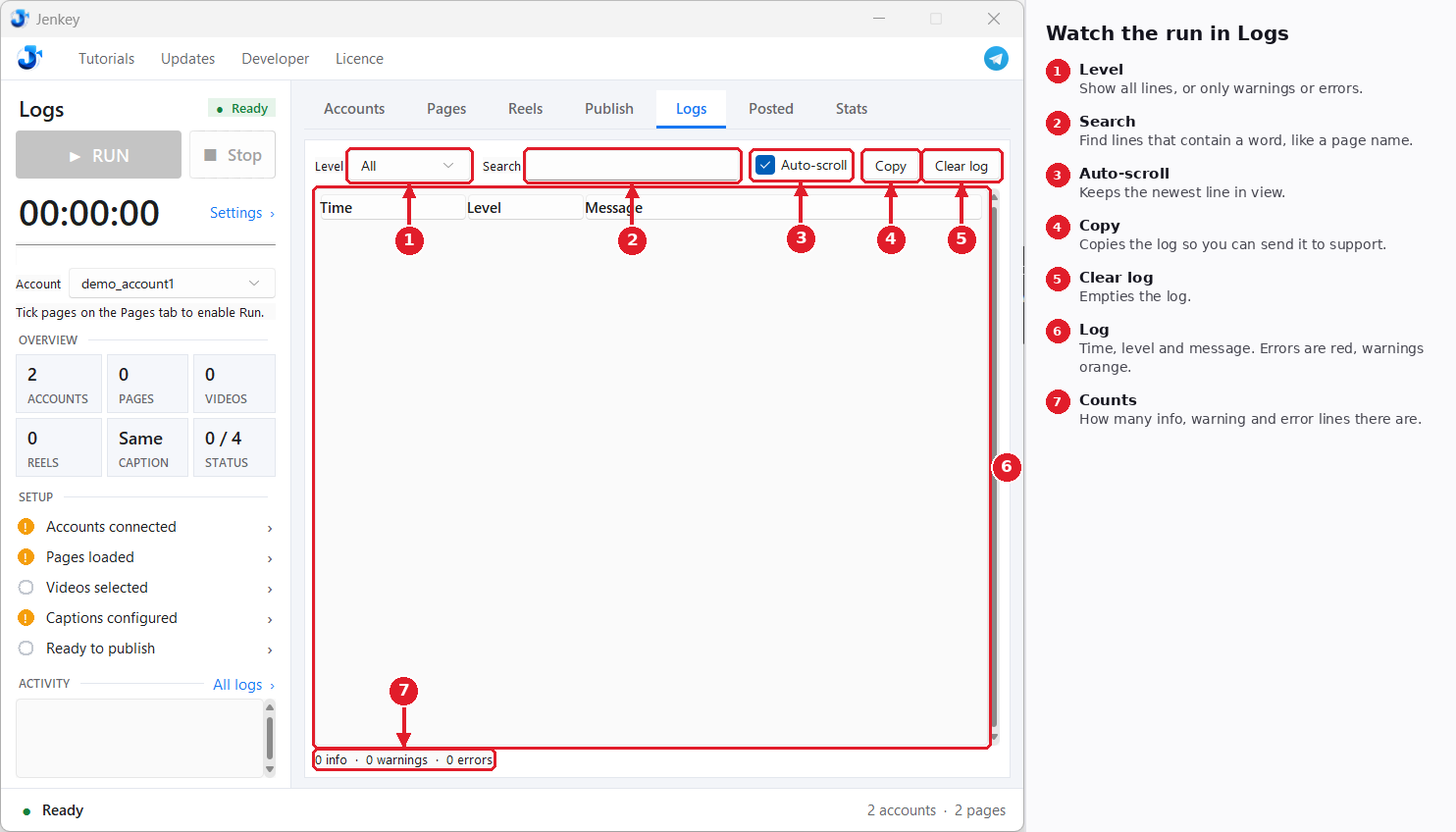
Watch the run in Logs
Every step Jenkey takes is written here, and kept for 15 days.
Show notes as text (7)
1
Level
Show all lines, or only warnings or errors.
2
Search
Find lines that contain a word, like a page name.
3
Auto-scroll
Keeps the newest line in view.
4
Copy
Copies the log so you can send it to support.
5
Clear log
Empties the log.
6
Log
Time, level and message. Errors are red, warnings orange.
7
Counts
How many info, warning and error lines there are.
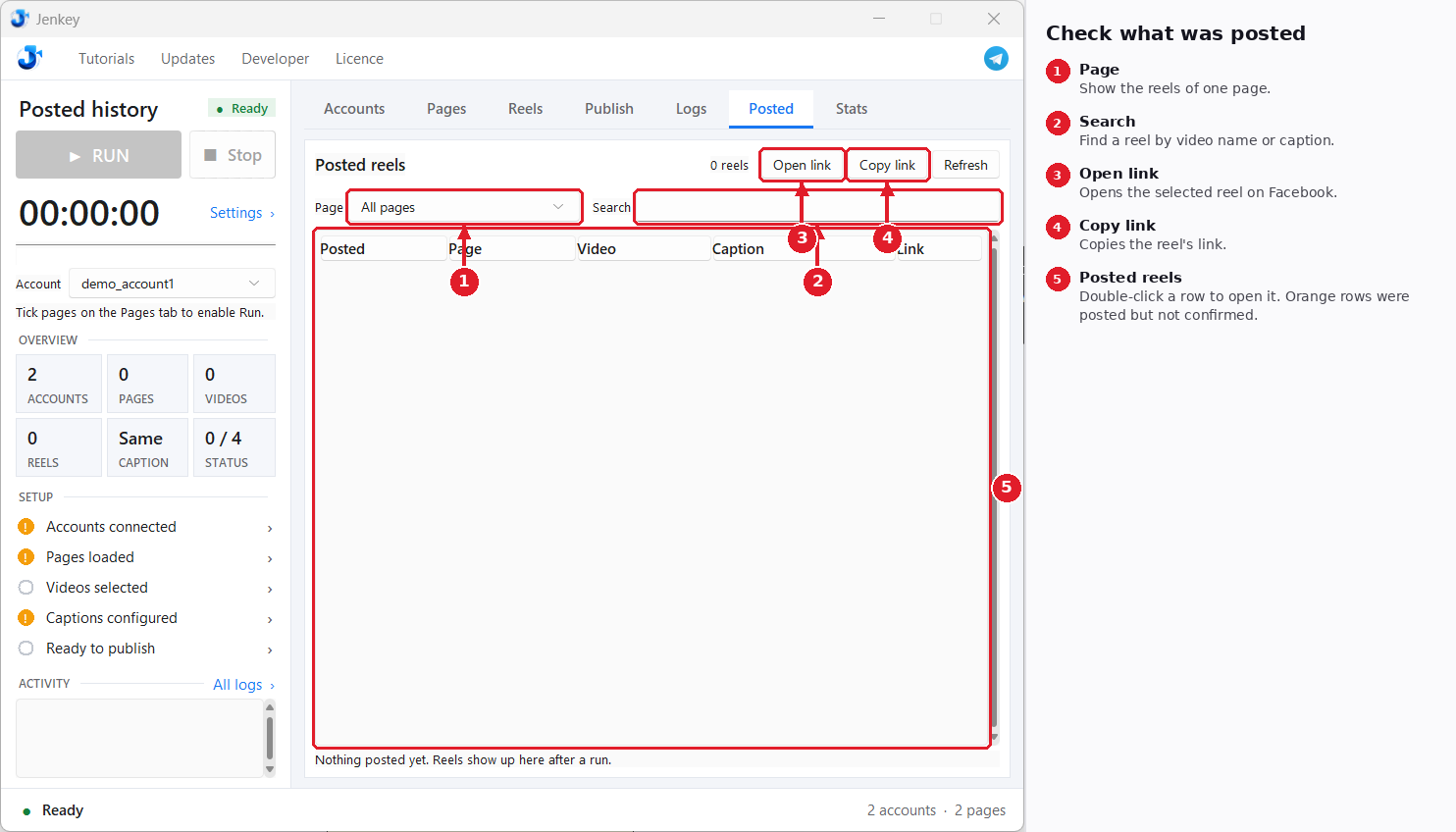
Check what was posted
Every reel Jenkey posted, newest first.
Show notes as text (5)
1
Page
Show the reels of one page.
2
Search
Find a reel by video name or caption.
3
Open link
Opens the selected reel on Facebook.
4
Copy link
Copies the reel's link.
5
Posted reels
Double-click a row to open it. Orange rows were posted but not confirmed.
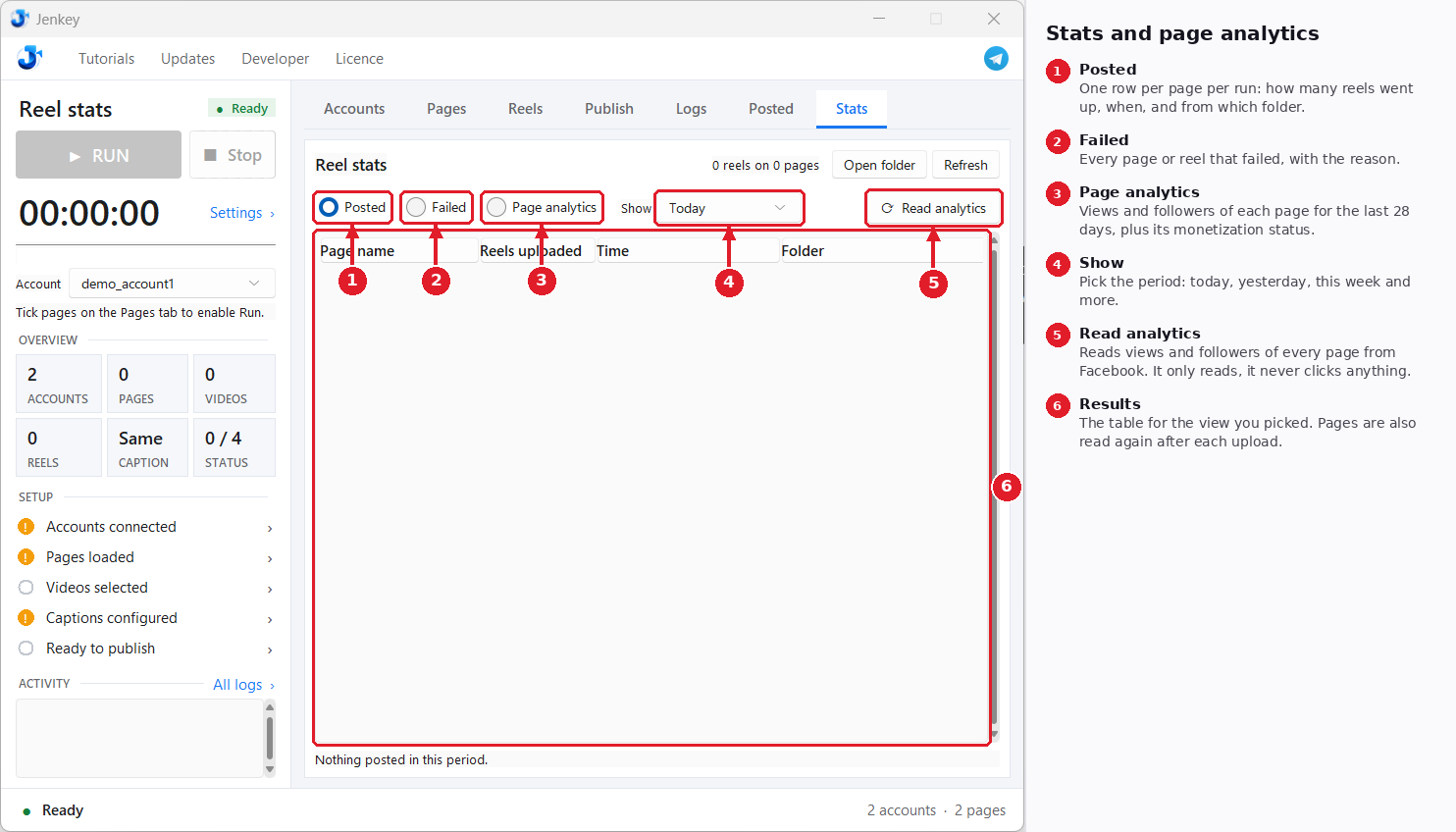
Stats and page analytics
Results per page and per run, plus views and followers from Facebook.
Show notes as text (6)
1
Posted
One row per page per run: how many reels went up, when, and from which folder.
2
Failed
Every page or reel that failed, with the reason.
3
Page analytics
Views and followers of each page for the last 28 days, plus its monetization status.
4
Show
Pick the period: today, yesterday, this week and more.
5
Read analytics
Reads views and followers of every page from Facebook. It only reads, it never clicks anything.
6
Results
The table for the view you picked. Pages are also read again after each upload.
Questions
Windows says “Windows protected your PC”.
Click More info, then Run anyway. Windows shows this for new apps that aren't code-signed yet.
Chrome doesn't open when I log in.
Jenkey needs Google Chrome. Install it from google.com/chrome, then try again.
Can I move just the .exe somewhere else?
No. Keep the whole Jenkey folder together, because the .exe needs the files next to it.
An account shows “needs check”.
Facebook asked that account for a check. Log it in yourself with Login selected and finish the check.
Will a reel ever be posted twice?
No. Once Post is clicked a reel is never repeated, and with Move posted videos on it moves to a posted folder.
Where do I get help?
Press the Telegram button at the top right of Jenkey, or copy the log from the Logs tab and send it to support.
 Jenkey
Download